

Guides
GTA 6 auto drive: how to use cinematic mode and Auto Drive (PS5)
Tested on PS5: set a destination on the map, hold D-pad down and Create and press Options for cinematic mode, then start the drive with circle. Your car then drives itself to the destination. With one setting it works off-road too.
Source: Rockstar Games: Grand Theft Auto VI · Tested ourselves
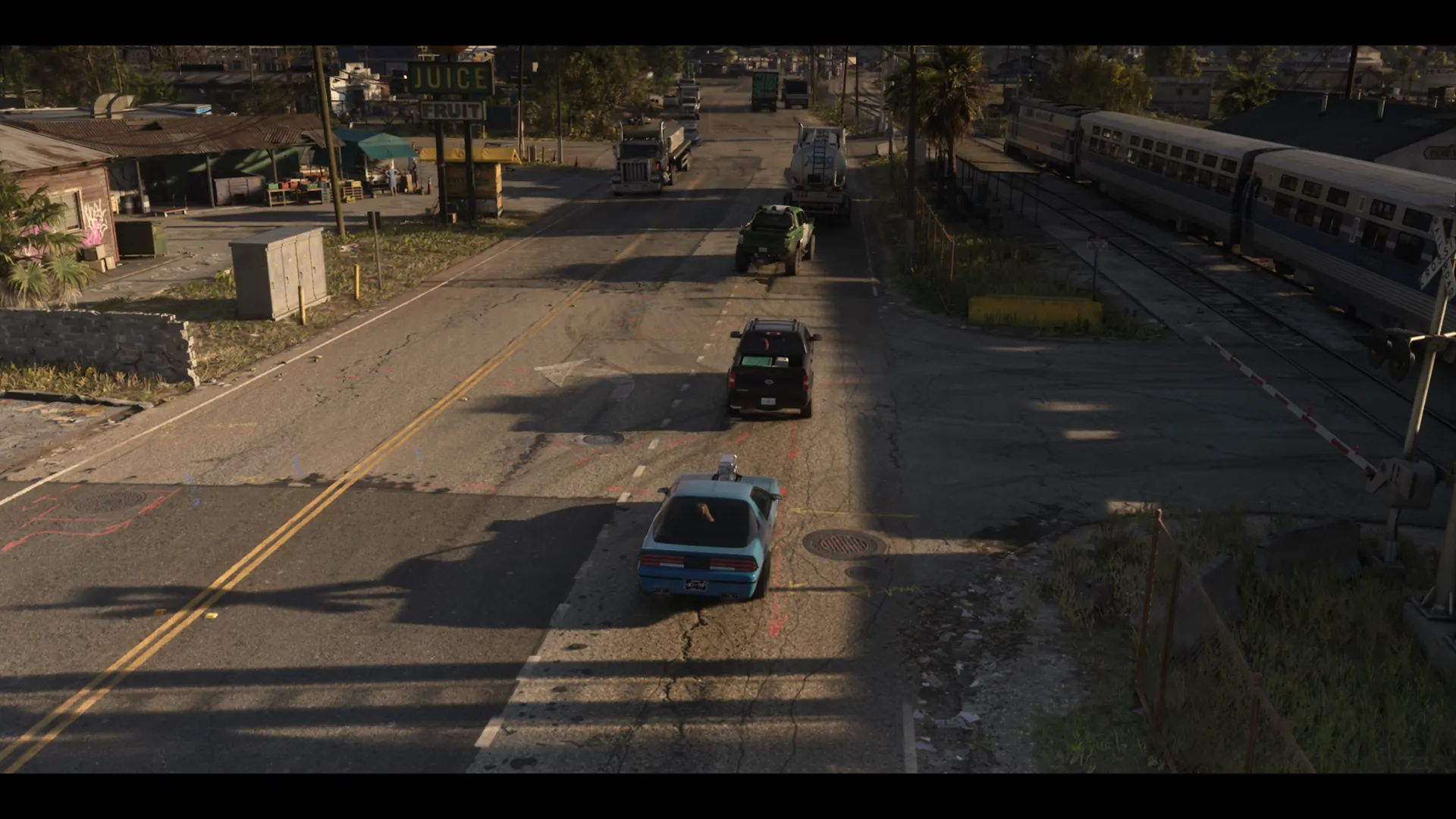
In GTA 6 your car can drive itself to your destination. Set a destination on the map, hold D-pad down and the Create button (the screenshot button) together and press Options for cinematic mode, then hold circle for Auto Drive. If you want it to work off-road as well, set Auto Drive to Unrestricted in the settings.
Step by step
You need three things: a vehicle, a destination on the map and a public road. The red boxes on the screenshots show where to look.
1. Set a destination
Step 1. Get in a vehicle.
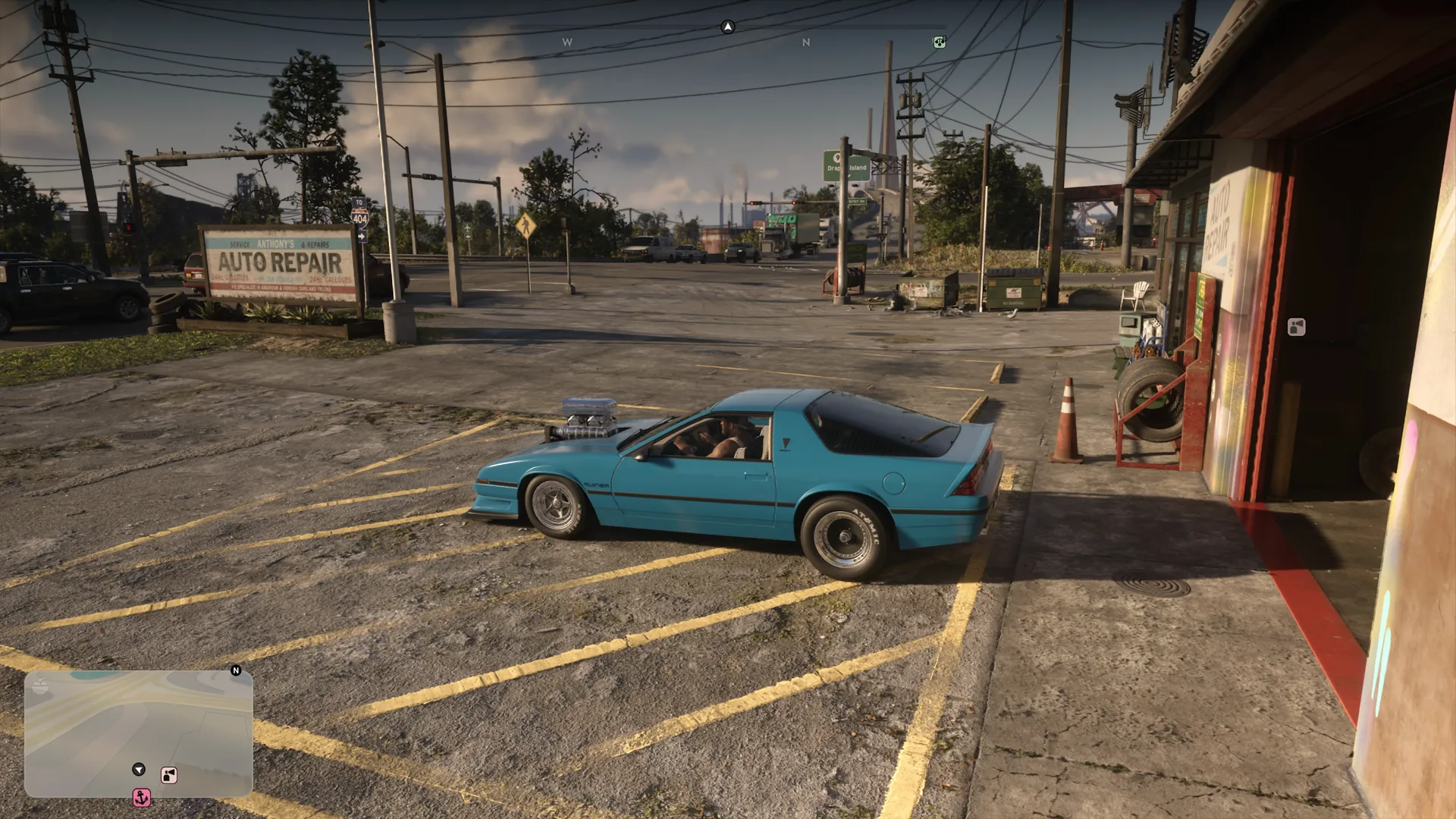
Step 2. Open the map, pick the place you want to go and press X at SET DESTINATION.
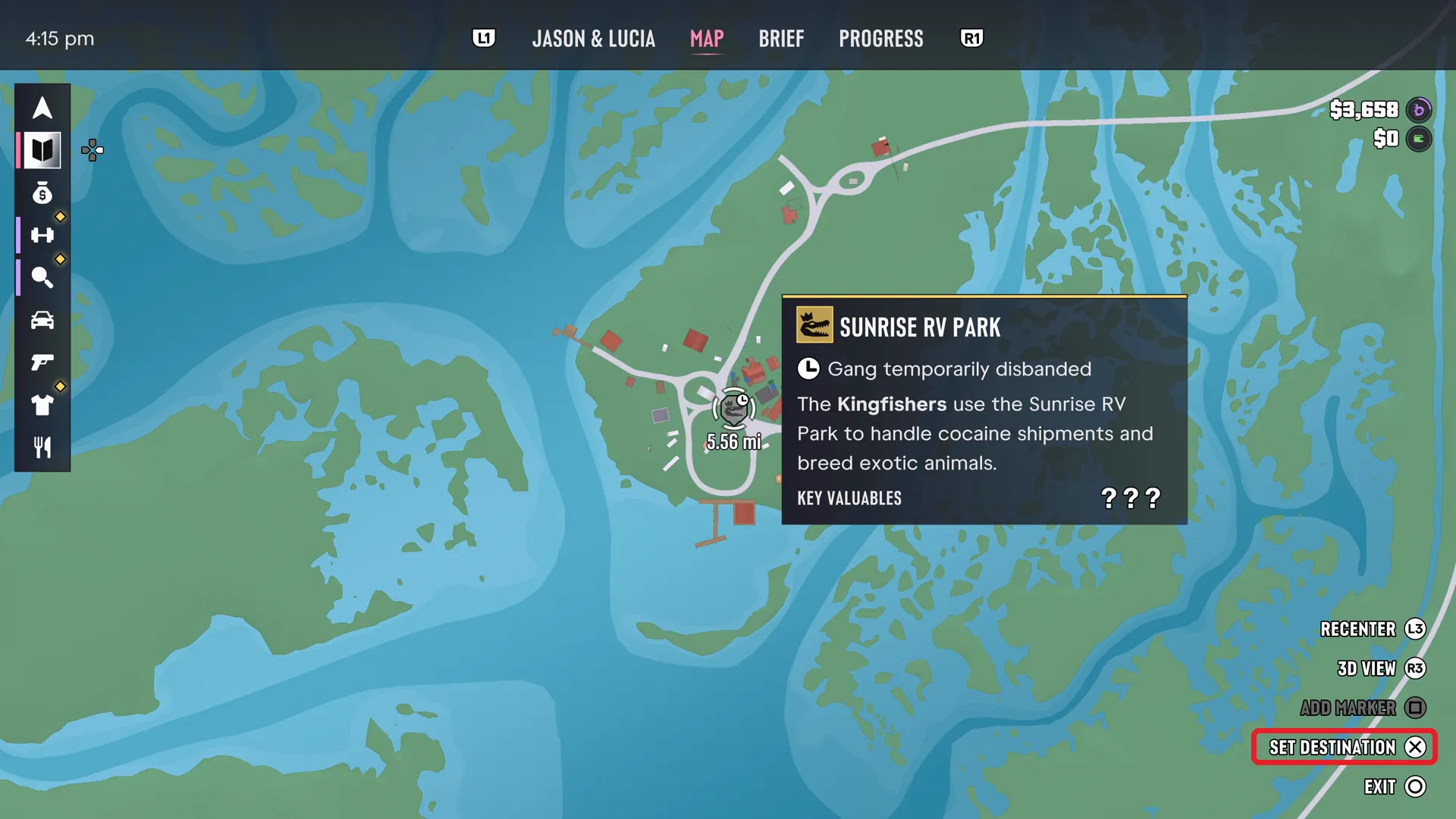
Step 3. Once the destination is set, the route shows on the map. Close the map and drive onto a public road.
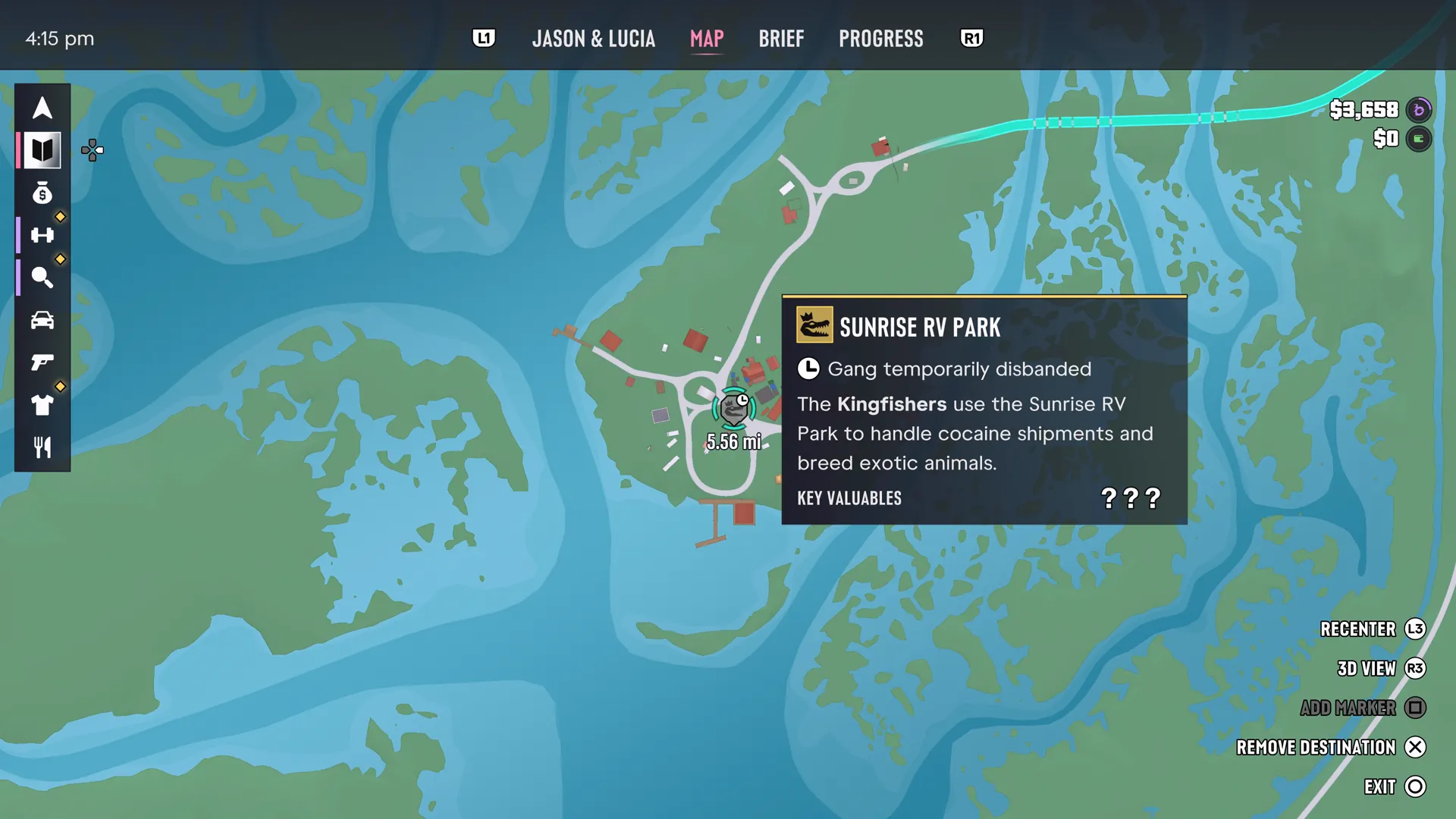
2. Turn on cinematic mode
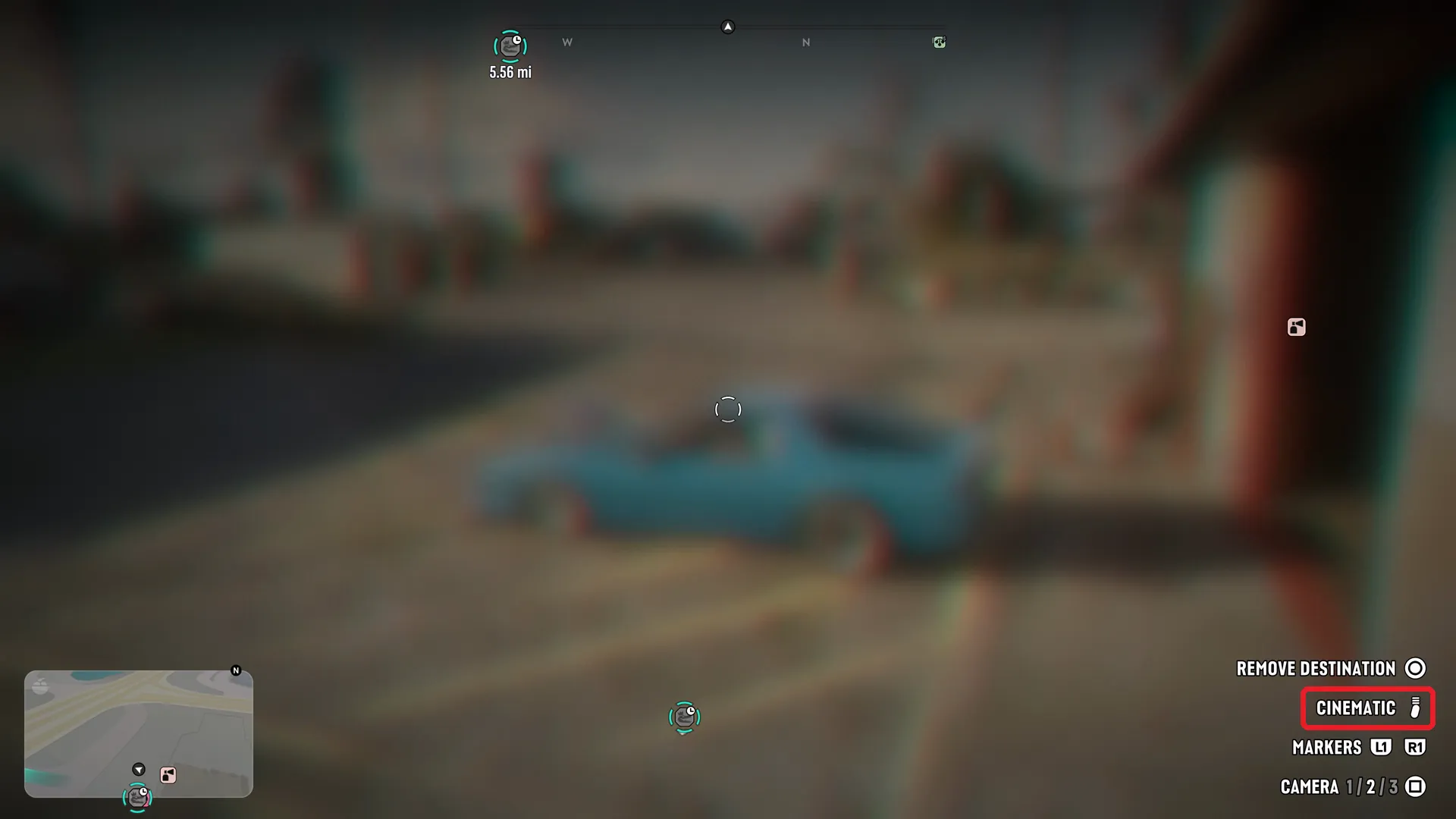
Step 4. Hold D-pad down and the Create button (the screenshot button, left of the touchpad) together. A menu appears in the bottom right with CINEMATIC. Then, while holding both, press Options: the view switches to cinematic mode, with black bars at the top and bottom.
3. Turn on Auto Drive
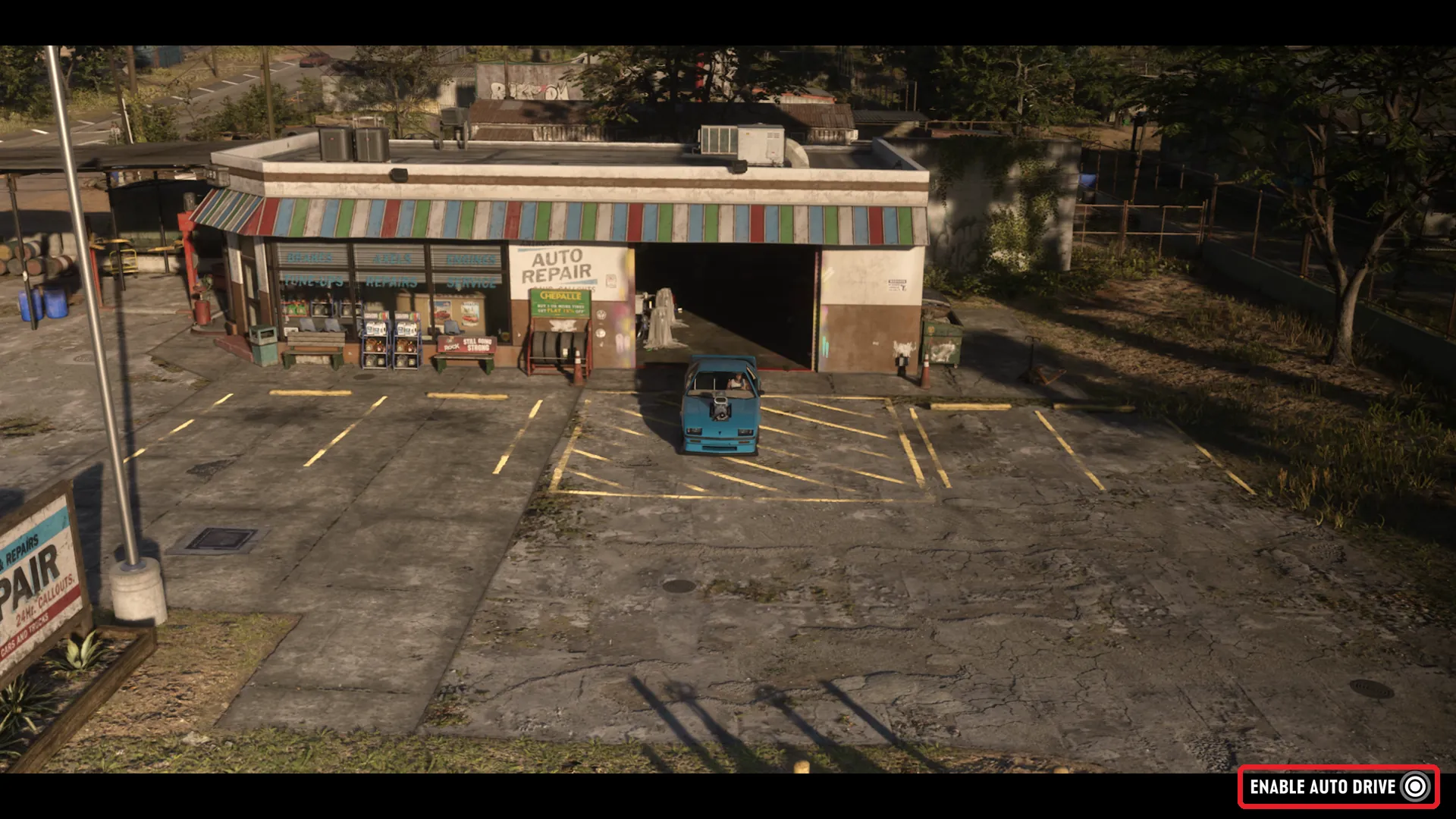
Step 5. In cinematic mode the bottom right reads ENABLE AUTO DRIVE. Hold circle: your car now drives itself to your destination.
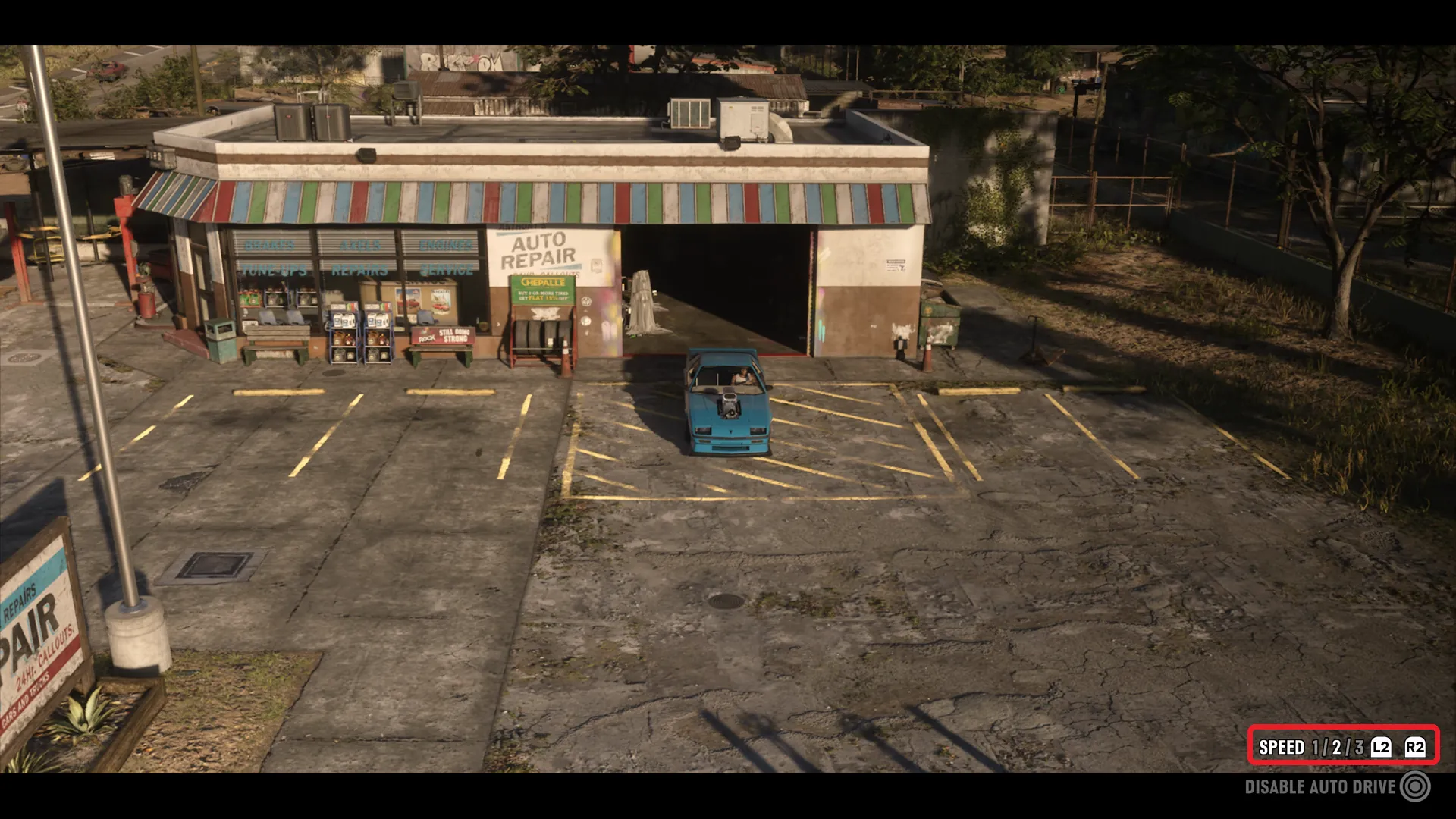
Step 6. While driving, L2 and R2 pick the speed (SPEED 1, 2 or 3). To steer yourself again, hold circle at DISABLE AUTO DRIVE.
Step 7. Sit back: the car follows the route through traffic until you arrive.
4. Off-road too
Step 8. By default Auto Drive only uses public roads. To drive automatically off-road as well, open Pause, go to Settings, then Gameplay, and set Auto Drive to Unrestricted.
What to press
Map: X at SET DESTINATION. Cinematic mode: hold D-pad down and Create together, then press Options. Auto Drive on: hold circle. Speed: L2 and R2. Auto Drive off: hold circle. Off-road: Pause, Settings, Gameplay, Auto Drive to Unrestricted.
Want to see our updates sooner in Google? Choose Leonida Mayhem as a preferred source. (opens in a new tab)